Install SpendSage like an app.
Add it to your home screen from your browser. Same account, no app store.
Android
In Chrome. The words can differ a little by phone.
Open spendsage.app in Chrome. Reading this in an email app? Open it in Chrome first.
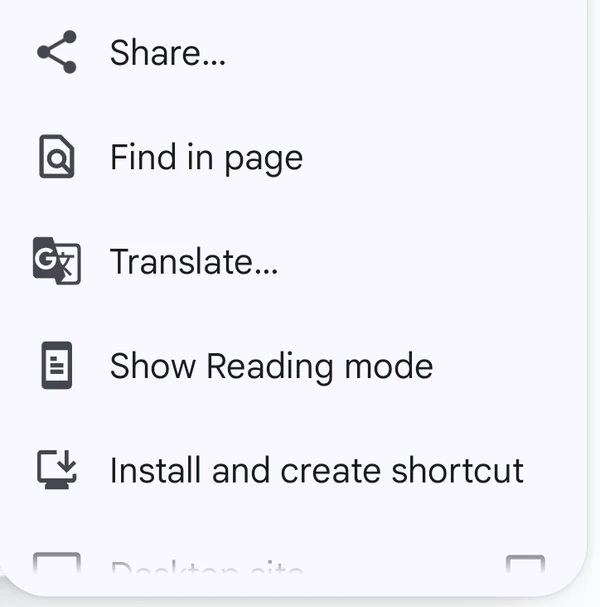
Tap the menu (three dots, top right), then Install and create shortcut.
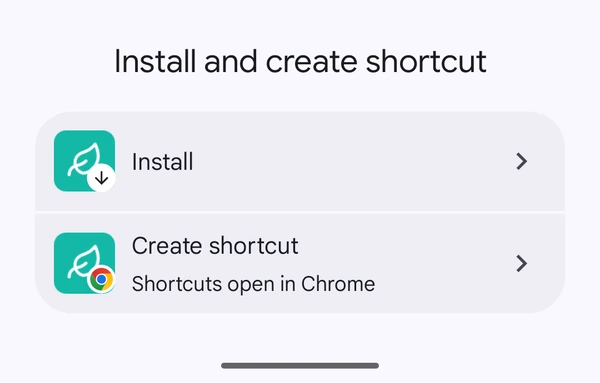
Choose Install, not Create shortcut. A shortcut opens in a Chrome tab.
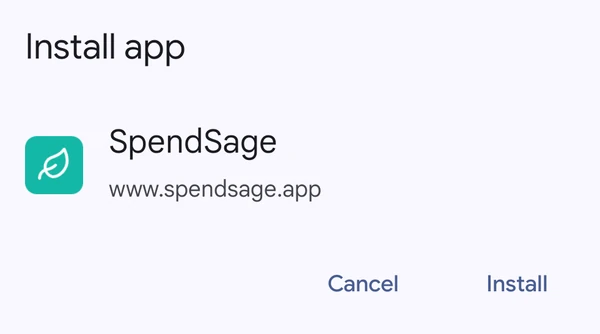
Tap Install to confirm.
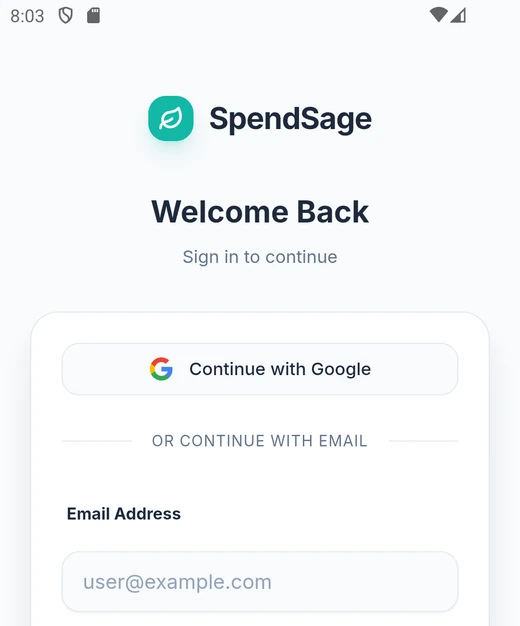
Open SpendSage from your home screen. It opens full screen on your dashboard, or on sign-in if you're signed out.
Have the app from Google Play too? You'll see two SpendSage icons that look the same. Both open the same account.
Using Samsung Internet or another browser? Look for Install or Add to home screen in its menu.
iPhone
In Safari. The words can differ a little by iOS version.
- Open spendsage.app in Safari.
- Tap Share (the square with an arrow). Don't see it? Tap the three dots first.
- Tap Add to Home Screen. You might need to scroll, or tap View More.
- If you see Open as Web App, leave it on. Then tap Add.
- Open SpendSage from your home screen.
Computer
In Chrome or Edge. The words can differ a little by browser.
- Open spendsage.app.
- Click the install icon at the right end of the address bar.
- Click Install.
No icon? In Chrome, open the menu, then Cast, save and share, then Install page as app. In Edge, open the menu, then Apps, then Install SpendSage. On a Mac in Safari, choose File, then Add to Dock.